

-
Delivery information
Free shipping at 100€ within Germany*
Shipping costs and delivery

-
Payment options

Free shipping at 100€ within Germany*
Shipping costs and delivery
Table of Contents:
--------------------------------------------------
2.1 Shipping
2.1.1 Advance payment
2.1.2 Credit Card
2.1.3 PayPal
2.1.4 Purchase on account (business customers)
--------------------------------------------------
Shipping costs are added here. Please refer to the table of shipping costs in [Shipping costs]
After ordering, we ask you to transfer / send us the final amount directly, as we only send the order after we have received the money
Please click first on "Buy", only then will you be asked to enter your credit card information. If you entered your data correctly, you will be asked to confirm on the next page.
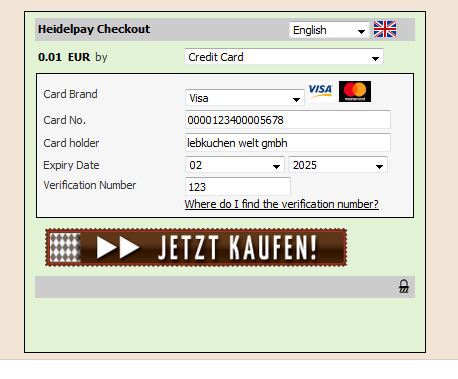
We ask you not to close the page yet, as you will be asked for a second confirmation, which is necessary for the correct transmission of the order to our shop system.
The double confirmation is for your own security, as all credit card information is encrypted.
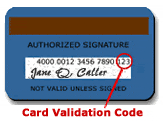
Where can I find the CVV / CVC on my credit card?
For Visa / Mastercard:
Please click on "Buy" first, only then you will be redirected to the payment service provider Paypal. Log in to your Paypal account to process the payment directly.
Your data will be SSL encrypted.
The advantages of Paypal:
Payment is made directly after the order
Faster than prepayment
Immediate dispatch of goods when payment is made, because the payment is transmitted directly to us
Purchase on account for business customers
For orders with a total value of more than 100 EUR
Delivery and invoice address must be identical - Only within DE
Invoice orders will be checked individually
7 days time to pay (from shipment of goods)
Do you have any questions? We're always at your service:
by email at info@lebkuchen-markt.de
--------------------------------------------------
You can easily create an individual offer for custom products. Here you can find two videos and two step-by-step tutorials, depending if you order only one custom product or more custom products.
Create offer for
 |
OR |  |
 |
|
Buy directly online Gingerbread
Use YouTube for fullscreen-mode: CREATE OFFER: ONE PRODUCT
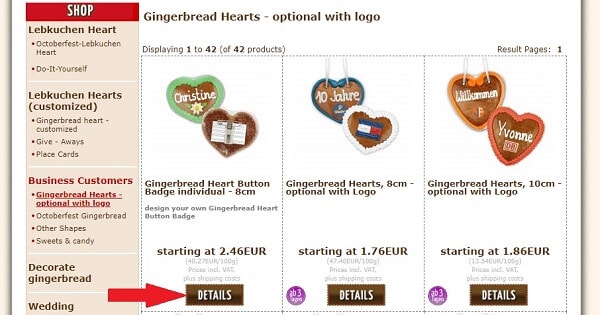
Step 1: Select product
By clicking on the button [DETAILS], you get additional information about the product and the possibilities of customization.
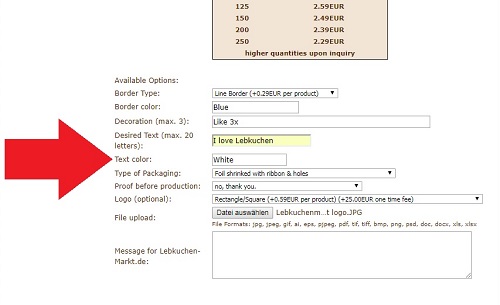
Step 2: Customize product (optionally)
Scroll down to the bottom of the product-page and customize your product by adjusting the different options, depending on product.
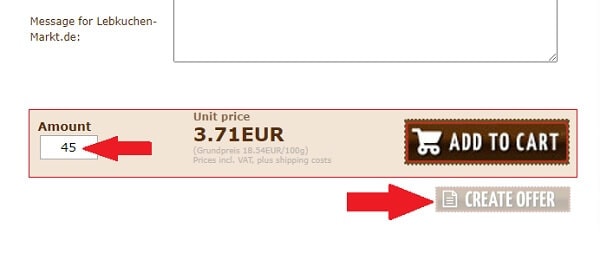
Step 3: Choose amount and create offer
Select the amount you want and click on the button [CREATE OFFER]. An additional window opens with your own custom offer. You can directly print it, or save it as PDF.
Use YouTube for fullscreen-mode: CREATE OFFER: SEVERAL PRODUCTS
Step 1: Choose product and customize it
Choose and customize the products you want. For details, look at the steps 1 to 2 of the tutorial above!
Step 2: Choose amount and add to cart
Select the amount you want to order and click on the button [ADD TO CART]. You will be directly redirected to your shopping cart.
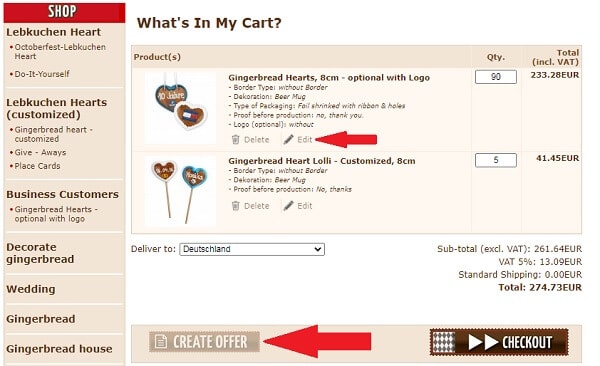
Step 2: Customize cart and create offer
You edit your selection wit the buttons [Delete] and [Edit], if needed.
Click on the button [CREATE OFFER]. An additional window opens with your own custom offer with all products. You can directly print it, or save it as PDF.
--------------------------------------------------
You can simply add all products you consider ordering into your shopping cart and proceed with the order - until a final confirmation you can cancel the checkout process at any time without placing an order!
Buy online Gingerbread and let it get shipped to your home - get to our products
Video-tutorial: Calculating international shipping rates:
Use YouTube for Fullscreen-mode: CALCULATE SHIPPING RATES
1.) Choose the category - we have categories for different occasions like christmas, Oktoberfest or weddings. Or choose between the category stock products or custom products.
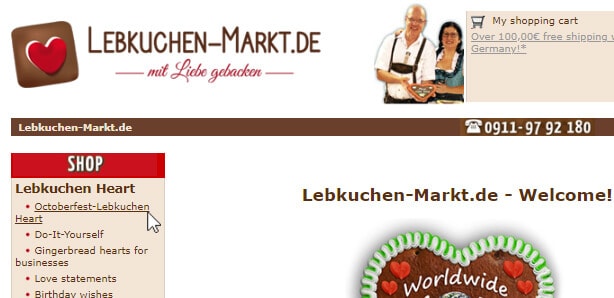
2.) Now choose between the products you see in the category. If one product cought your interest - click on "Details" below the picture.
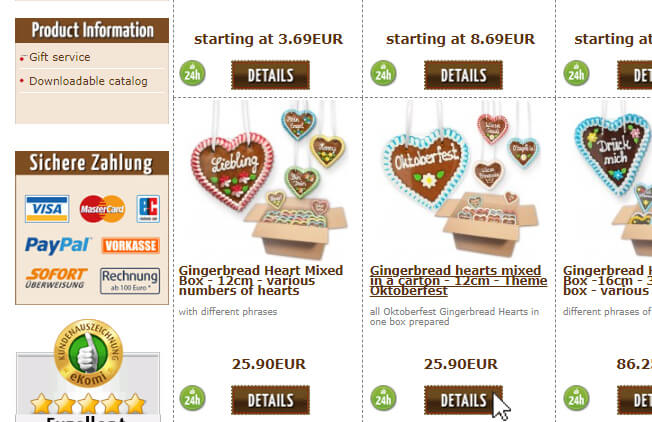
3.) Scroll down to the bottom of the product page and choose an option (if available) and "ADD TO CART"
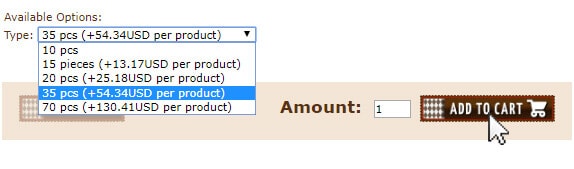
4.) Once you have everything you wish for in your shopping cart proceed using the "Checkout"-button.
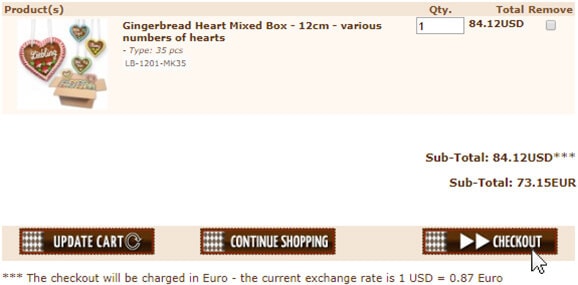
5.) Enter your Billing/shipping address and "continue" (Don't worry, it is not an order yet!)
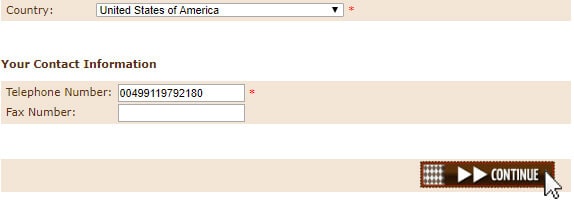
6.) If needed you can enter a different delivery adress - if not just "continue"
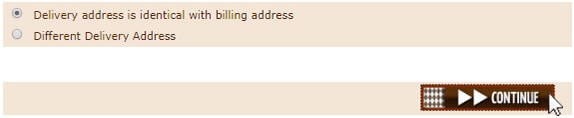
7.) All done! Now all available shipping options and the shipping costs are displayed for your location.
Now you can:
a) either cancel or
b) continue with the process to place an order.
If you want to place the order, just click "continue".
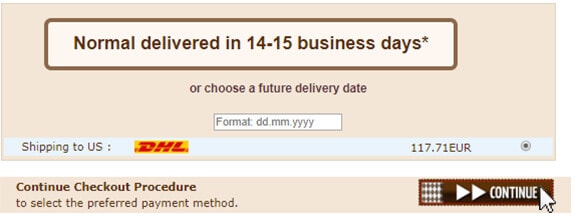
Same steps 1-7 and the following:
8.) Choose your preferred payment option and click on the checkbox to agree to our conditions.
You can still cancel the order at this point!
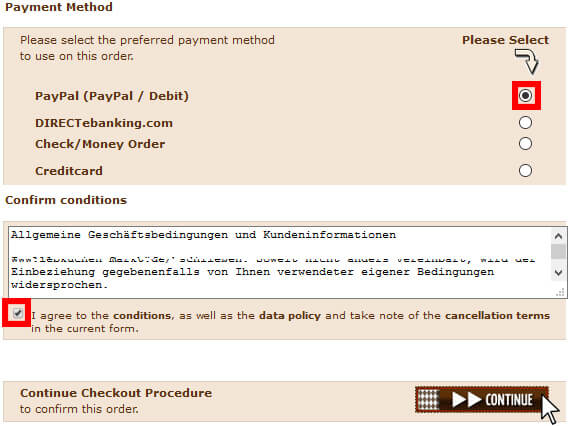
9.) That's it! Your total sum is shown now. You can confirm your order or cancel by going back in your browser.
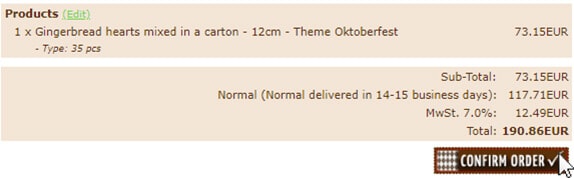
10.) Your order was succesful - an email confirmation is on the way to you!